PokéBonk Controls: Keyboard, Camera and Aiming
Find PokéBonk’s desktop keys for movement, jump, slide, Ultimate and pause. Compare Automatic and Manual aiming with checked setup steps.
Which keys does the current game list?
The following is transcribed from the Beta v0.5.5 desktop pause help, checked October 17, 2026. Help text establishes the listed binding; it does not mean every action was tested with every Pokémon.
| Input | Listed action | What to remember |
|---|---|---|
| WASD | Move | Keep an escape route open. |
| Mouse | Camera | Camera direction matters in Manual aiming. |
| Space | Jump | Help says to hold to glide if your partner flies. |
| Shift | Slide | Listed in the current pause help. |
| R | Ultimate | Read your partner’s Ultimate in the League. |
| E | Interact | Use when the game offers an interaction. |
| Right click | Lock target | Listed targeting action. |
| Q | Aim | Listed aiming action. |
| Mouse wheel | Zoom | Adjust the view. |
| Esc | Pause / resume | Inspect moves, items and stats. |
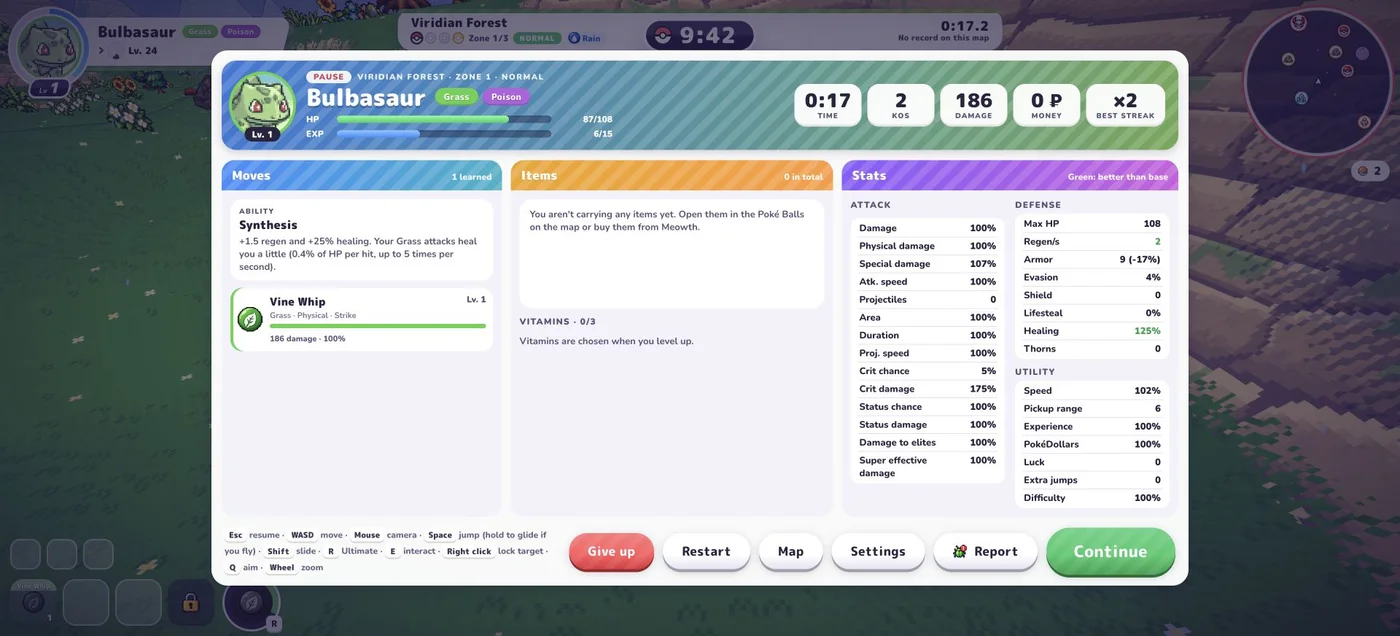
We used pause in a real early Classic run. Flying/gliding, target locking and slide effectiveness need broader gameplay tests; they are listed here as the game’s bindings, not measured strategy advice.
How do Automatic and Manual aiming differ?
Open Settings → Controls. The screen describes Auto: closest enemy · Manual: toward the camera and provides Automatic and Manual buttons. It also has mouse sensitivity and an invert-Y control.
Automatic is a useful starting point while you learn movement because our opening checks registered attacks without repeated attack clicks. Manual changes the listed aiming direction to the camera; it is not a separate click-to-fire binding. Neither setting is established here as a damage advantage.
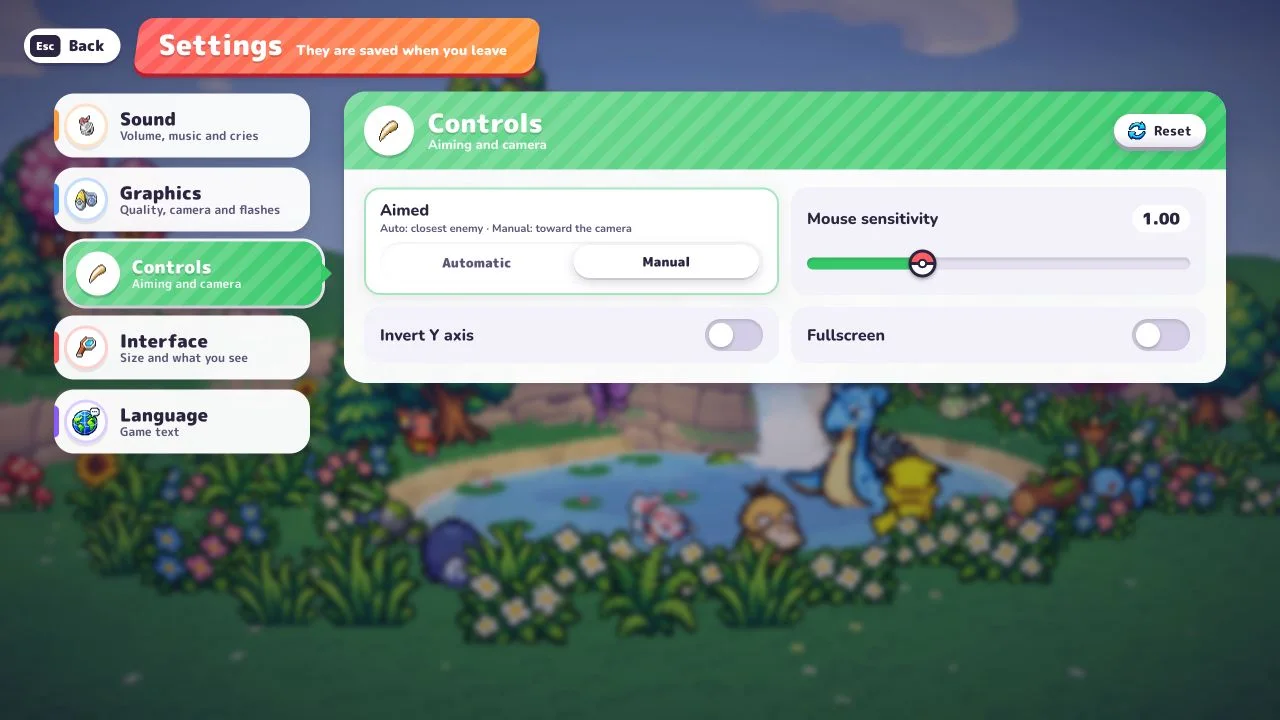
Example: attacks do not follow the camera
In Automatic, the closest-enemy rule can explain this behavior. Open Settings → Controls and check the selected button before treating it as an input fault. If you want to practise camera-directed aiming, select Manual and return to the game.
Example: you want to compare aiming without restarting
- In a run, press Esc, then Settings → Controls.
- Note the current selection and choose the other aiming option. The in-run Settings panel says changes apply immediately.
- Use Back to return to pause, then Continue to resume. Changing the setting does not require Restart or Give up.
- Keep the same partner and compare the attack direction described by the menu. Return to your original selection when finished.
We directly checked both selected-button states and switched aiming through the pause Settings flow in a brief Bulbasaur Classic opening. That verifies the menu procedure; we did not measure hit rate, range or damage differences. Main-menu Settings says changes are saved when leaving that screen, so exit with Back after choosing.
If camera movement itself feels too sensitive, note the current Mouse sensitivity value and compare a small adjustment separately. Avoid changing aim mode, sensitivity and quality together: you would not know which change affected the result.
How do you check what your inputs changed?
Press Esc and inspect the panel instead of guessing from animation alone. During our run it showed HP, EXP, time, KOs, moves, items, vitamins and detailed stats. The same panel offered Continue, Settings, Map, Restart and Give up.
Do not press Restart or Give up while intending only to close the panel. Use Continue or Esc. For the complete entry sequence, see getting started. To compare the attack you start with, use Bulbasaur, Charmander and Squirtle.
What about phone controls?
This page is a desktop reference. We have not verified the touch layout or gamepad bindings. Do not treat the keyboard table as mobile instructions. If the 3D scene is missing, start with browser troubleshooting; if you are choosing a run structure, see Classic and Survival.
Sources and verification
Checked October 17, 2026 against the original English game, Beta v0.5.5, on desktop. Direct checks covered the Settings/Controls screen, switching Automatic and Manual, the pause → Settings → Back → Continue flow, Bulbasaur’s League profile and brief Viridian Forest Classic openings on Normal. The key table comes from the pause legend; untested bindings are identified above. No camera-directed hit-rate benchmark, full clear, gliding, multiplayer, gamepad or touch-layout test is claimed.
Related Articles
guides
PokéBonk Not Loading? Browser and WebGL Troubleshooting
Troubleshoot PokéBonk connection errors, a missing 3D scene, lag and aiming problems with a symptom checklist that protects your Guest session.
guides
PokéBonk Classic vs Survival: Modes and Difficulty
Compare PokéBonk Classic and Survival menu descriptions, zones, guardians, milestones and difficulty options before you start a run.
guides
How to Play PokéBonk: Beginner Guide
Start the original PokéBonk in your browser: enter as a Guest, choose a starter, select Classic or Survival and prepare your first Normal run.
Was this helpful?
Thanks for the feedback!